
Why Learn Gamma AI in ?
Gamma AI, which you can find at gamma.app, is a fast way to make your ideas look super professional.
If you are a student who needs to work on a project, a marketer who is making a campaign, or a founder who is making a pitch, Gamma AI is very helpful.
You just need to give Gamma AI one idea. You can copy and paste something you already wrote, and it will do the rest.
This tutorial is great for people who are new to Gamma AI.
It shows you every single step, from signing up to finishing your project. It even has pictures of what the Gamma AI website will look like in 2026.
What you’ll learn:
- How to sign up and navigate the dashboard
- The 3 main creation modes (Generate, Paste in text, Import)
- Editing with the AI Sparkle icon + card-based layout
- Applying themes, brand kits, and Studio mode
- Exporting and sharing like a pro
- Common beginner mistakes (and how to avoid them)
Step 1: Sign Up and Set Up Your Workspace
- Go to gamma.app
- Click Start for free (no credit card needed)
- Sign up with Google, Microsoft, or email
- You’ll instantly get 400 AI credits on the free plan
After sign-up, you land on the clean dashboard. Click + New → Create with AI to begin.
Step 2: Choose Your Creation Mode – The 3 Best Ways to Start
Gamma offers three beginner-friendly ways to create. Here’s when to use each:
| Mode | Best For | How Long It Takes |
|---|---|---|
| Generate | Brand-new ideas & quick starts | 10–60 seconds |
| Paste in text | Existing notes, outlines, or docs | 20–90 seconds |
| Import file or URL | Old PPTs, PDFs, or web pages | 30–120 seconds |
How to use each mode:
A. Generate (Most Popular)
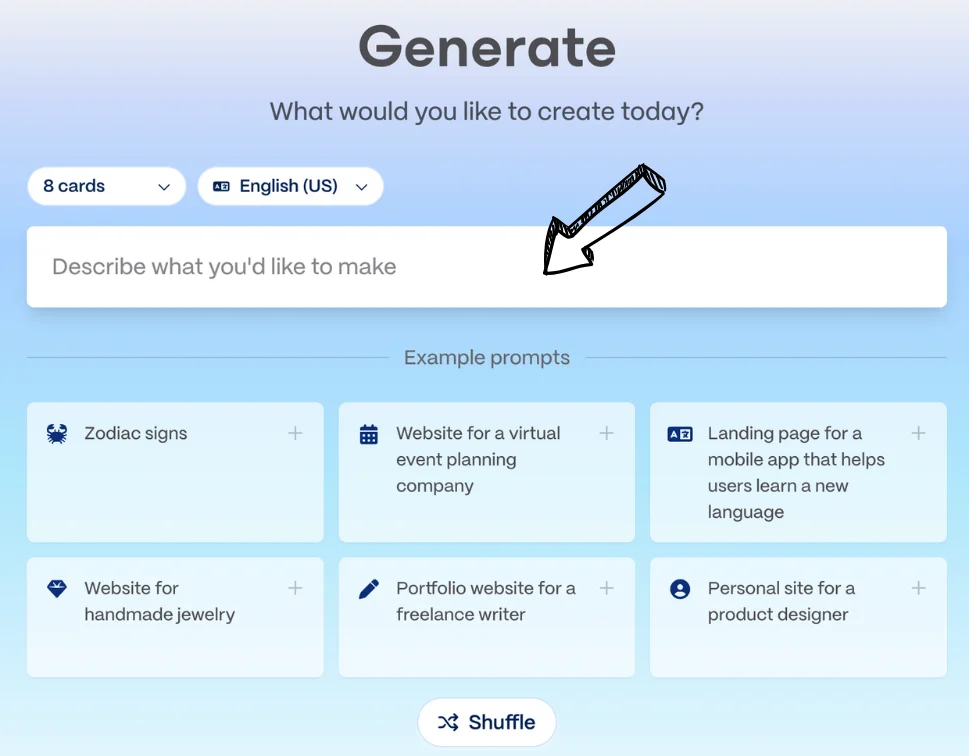
- Click Generate
- Type a clear prompt- “Create a 12-slide Q2 marketing strategy for a SaaS AI tool targeting startups”
- Choose number of cards (8–15 recommended for beginners) and language
- Hit enter and watch Gamma build it live.
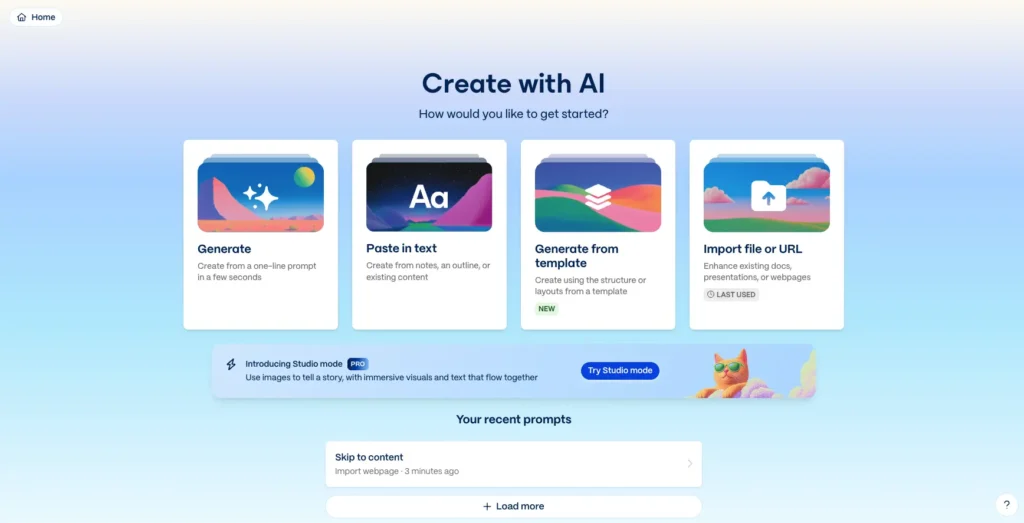
B. Paste in text
- Copy your notes, bullet points, or full document
- Paste directly into the box
- Gamma turns messy text into beautiful cards automatically.
C. Import file or URL
- Upload a PDF, PPTX, or paste a webpage link
- Gamma analyzes it and rebuilds it with modern design.
Step 3: Edit and Refine Your Project Like a Pro
Once generated, you enter the editor — a clean card-based interface.
- Each section is a card (text, image, chart, embed, etc.)
- Click any card to edit text, replace images, or drag to reorder
- Click the ✦ Sparkle icon (AI magic wand) on any card or the whole deck for:
- Improve writing
- Make longer / shorter
- Fix spelling & grammar
- Translate
- Change style or tone
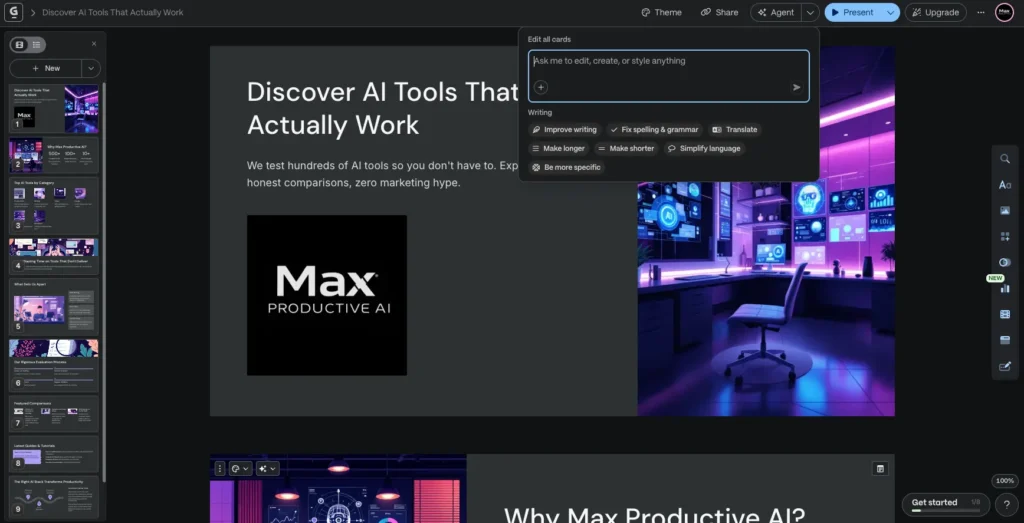
You can regenerate entire slides or ask the AI: “Make this section more persuasive” or “Add a timeline here.”
Step 4: Customize Design with Themes & Brand Kit
- Click Theme in the top bar
- Choose from curated themes or Customize for your own colors, fonts, and logo
- Enable Brand Kit (Pro plan) for company-wide consistency
- Try Studio mode (new in 2026) for immersive, image-first storytelling.
Step 5: Collaborate, Present, and Export
- Click Share → Invite teammates with edit or view-only access (real-time collab works perfectly)
- Use Present mode for beautiful full-screen slideshows
- Export options:
- PDF (best quality)
- PPTX (for PowerPoint users)
- Shareable web link (with analytics)
- Embed on your website
Common Beginner Mistakes to Avoid
If you give prompts, the results will be generic. You should be specific when you ask for something, including the audience, the tone you want to use, and even the number of slides you need.
Do not forget to use the Sparkle icon because you will miss out on most of the power of Artificial Intelligence if you do not.
When you are working on something, do not try to edit it much by yourself. Let Artificial Intelligence handle the layout first. Then you can make some changes.
It is very important to save versions of your work. You can use the version history, which is located at the top left.
If you are doing work for a client, do not use the free plan. You should upgrade to the Plus plan or the Pro plan so that you can remove the “Made with Gamma” branding from your work.
Pro Tips for Faster Results
When you get stuck, try using the example prompts from the suggestion bar.
It can really help you.
Use the example prompts from the suggestion bar to get some ideas.
You can do this by combining modes.
First, you generate something, then you can import some data to make it better.
You can also add images to your work using the sidebar, which is pretty cool.
Gamma is a feature that suggests some AI-generated visuals for you automatically.
If you want to know how many people are looking at your work, you can use the built-in analytics tool. You need to have the Pro plan to do this.
The built-in analytics tool is a way to track views and see what is going on with your work, and it is available with the Pro plan.
FAQ: How to Use Gamma AI
Q: Is Gamma AI free to use? A: Yes! Free plan gives you 400 credits + full creation features.
Q: Do I need design skills? A: Absolutely not. The AI handles design, layout, and visuals.
Q: Can I export to PowerPoint? A: Yes — clean PPTX export is available on paid plans.
Q: How does it compare to Canva or PowerPoint? A: 10x faster for new content. Canva is better for heavy manual customization.